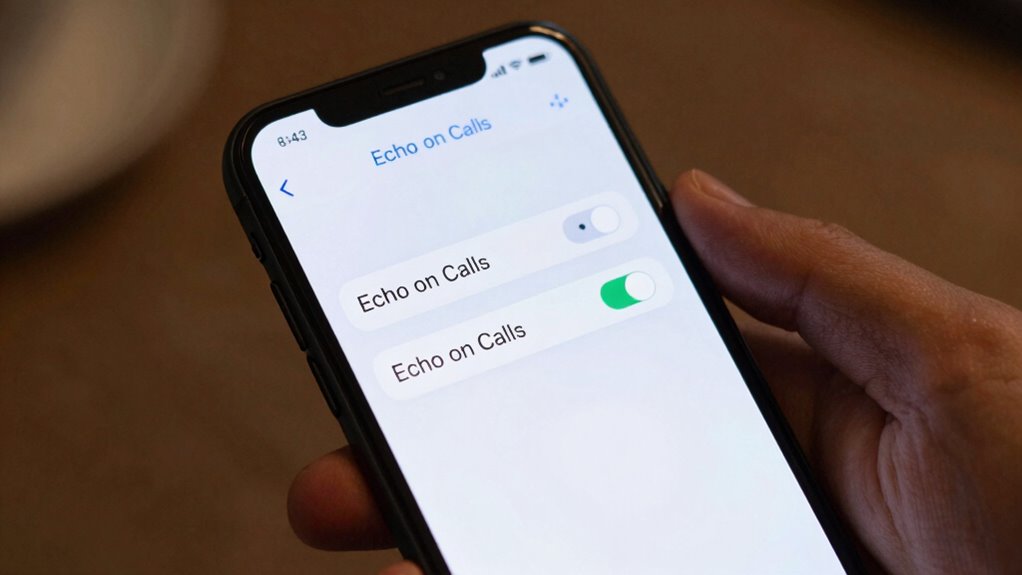

To fix echo on calls quickly, check your device’s audio settings and enable the echo cancellation or noise suppression feature. If you’re using apps like Zoom or Teams, make sure the “Suppress Background Noise” option is turned on. Using headphones also helps eliminate feedback. These simple adjustments often solve echo issues fast. Want more tips on stopping call echo for good? Keep going to discover how you can get crystal-clear calls every time.
Key Takeaways
- Enable echo cancellation or noise suppression features in your call app or device settings.
- Use headphones instead of speakers to prevent audio feedback and reduce echo.
- Adjust microphone placement, keeping it close to your mouth and away from speakers.
- Ensure your device’s firmware and call app are up to date for optimal audio processing.
- Test call settings and hardware, and restart devices if echo persists after making adjustments.
Why Call Echo Happens and How It Affects Your Communication

Call echo happens when your voice is reflected back through the line, creating a delayed or repeated sound that can make communication difficult. This occurs because of audio feedback, where sound from your speaker re-enters your microphone, causing a loop. Speaker delay is a common cause, especially if the device’s audio processing takes too long, making your voice sound echoed. When the microphone picks up the sound from your speakers, it creates a feedback loop that results in the echo you hear. This not only hampers understanding but also can be distracting or frustrating during calls. Understanding that audio feedback and speaker delay are the main culprits helps you recognize why calls become unclear and why fixing these issues can improve your communication experience. Additionally, high refresh rates in audio processing can help reduce latency and minimize echo effects, leading to clearer calls. Being aware of audio latency can also assist in troubleshooting and optimizing your device settings for better call quality. Properly adjusting your device’s microphone and speaker placement can further reduce the chances of feedback loops, especially if you also consider device ergonomics for optimal positioning, enhancing overall call clarity. Also, optimizing device settings for audio performance can significantly reduce echo issues and improve call quality.
Common Causes of Call Echo: Hardware, Software, and Network Issues
Hardware, software, and network issues are common causes of call echo that can disrupt your conversations. Poor speaker placement often leads to audio feedback, where sound from your speaker loops back into the microphone, creating echo. If your microphone is too close to the speaker, it amplifies this problem. Faulty or outdated hardware, like damaged microphones or speakers, can also produce echo, especially if they pick up sounds that shouldn’t be transmitted. Software glitches or outdated app versions may cause audio delays or feedback, worsening the echo. Network issues, such as low bandwidth or unstable connections, can delay audio transmission, making echoes more noticeable. Additionally, improper hardware setup can significantly contribute to echo problems. Ensuring proper audio device configuration can help minimize these issues and improve call quality. Identifying whether hardware placement, software bugs, or network problems cause the echo helps you target the right fix.
Diagnose Whether Call Echo Is Caused by Your Device or the Other Person
To figure out if the echo is caused by your device or the other person, start by checking your microphone setup to verify it’s working properly. Then, test calls with different people to see if the issue persists across all conversations. This quick diagnosis helps you identify whether the problem lies with your equipment or the other caller’s setup. Additionally, soundproofing techniques can help minimize echo in your environment and improve call quality. Proper microphone positioning can also reduce unwanted audio feedback. Be aware that indoor air quality can also influence overall device performance, as dust and microplastics in dust may contribute to audio device issues. Incorporating noise reduction methods can further enhance clarity during calls.
Check Your Microphone Setup
If you’re experiencing echo during calls, start by checking your microphone setup to determine if the issue stems from your device or the other person’s. First, verify your microphone is positioned correctly; proper microphone positioning reduces unwanted background noise and echo. Second, confirm your audio input settings: select the correct microphone and adjust input volume to prevent distortion. Third, test your microphone by recording a short clip and listening for any echo or static. If sound quality is poor or echo persists, try reconnecting or switching to a different microphone. Additionally, testing your microphone’s audio quality can help identify if the echo originates from your device’s microphone setup, allowing you to make necessary adjustments before blaming the other person’s equipment.
Test With Different Callers
Testing your call with different people can quickly reveal whether the echo originates from your device or the other person’s setup. If you notice consistent echo issues across multiple callers, it’s likely a problem with your device or network affecting call quality and audio clarity. However, if only one person experiences the echo, the issue probably lies with their device or environment. To diagnose this, try calling various contacts and note the results. Here’s a quick reference:
| Caller | Call Quality | Echo Present? | Notes |
|---|---|---|---|
| Person A | Good | No | No issues |
| Person B | Fair | Yes | Possible device problem |
| Person C | Excellent | No | No echo observed |
| Person D | Poor | Yes | Environment may be the culprit |
This helps you identify if the problem is on your end or theirs. Troubleshooting techniques can further assist in resolving audio issues.
The Quick Fix: One Setting to Stop Call Echo
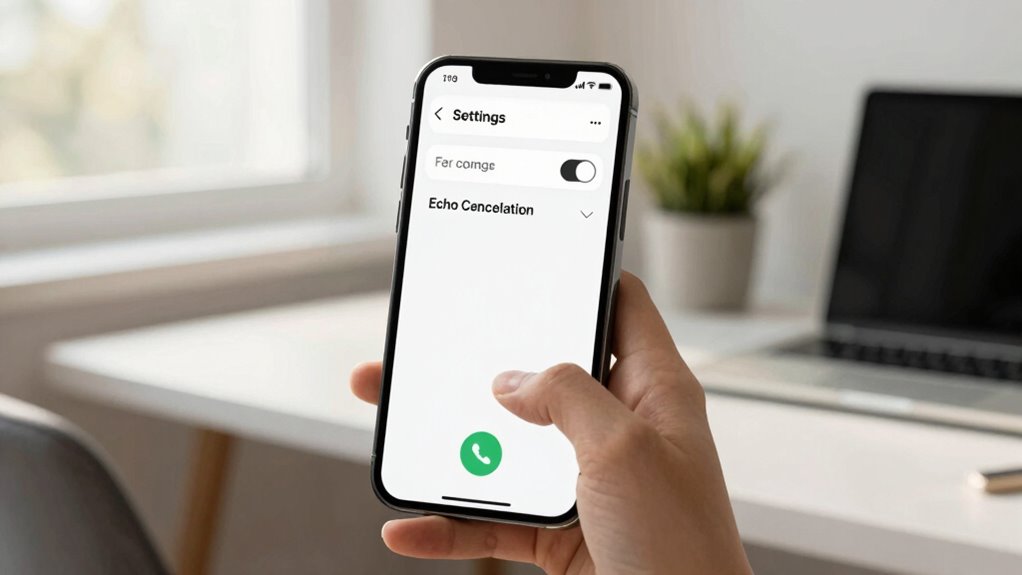
Often, the quickest way to eliminate call echo is by adjusting a single setting on your device. This change reduces audio feedback that causes the echo and helps minimize background noise interference. To do this, follow these steps:
- Mute your microphone when not speaking – prevents unnecessary audio feedback.
- Enable noise suppression or background noise reduction – blocks ambient sounds that worsen echo.
- Adjust microphone sensitivity settings – lowers the chance of capturing echo-inducing sounds.
- Keep your device’s firmware updated to ensure optimal audio performance and access to the latest audio enhancement features. Additionally, choosing the right microphone setup can significantly improve call clarity and reduce echo issues. Regularly reviewing your device’s audio settings can also help maintain optimal sound quality, especially as smart home devices become more integrated into your environment.
Here’s How to Fix Call Echo on Zoom, Teams, or Your Phone
Adjusting your device settings can effectively eliminate call echo on platforms like Zoom, Teams, or your phone. To fix audio feedback and reduce speaker distortion, start by checking your microphone and speaker levels. Lowering the microphone volume or switching to headphones minimizes echo and prevents audio feedback loops. Use the following table to understand how different settings impact call quality:
| Setting | Effect on Audio Feedback | Impact on Speaker Distortion |
|---|---|---|
| Microphone Gain | Reduces echo | Less distortion |
| Headphone Use | Eliminates feedback | No speaker distortion |
| Echo Cancellation | Minimizes echo | No impact |
Understanding the causes of audio feedback can help you troubleshoot and avoid common issues during calls. Properly configuring these options can significantly improve your call experience and clearer communication. Additionally, being aware of audio feedback mechanisms helps in preventing recurring problems during virtual meetings. Knowing how different device settings influence call quality allows for more effective troubleshooting and a better overall experience.
Easy Tips to Keep Calls Echo-Free Going Forward
To keep your calls echo-free, start by adjusting your echo cancellation settings and ensuring your microphone is positioned correctly. Regularly update your call software to benefit from the latest fixes and improvements. These simple steps can make a big difference in maintaining clear, echo-free conversations. Additionally, using a high-quality microphone setup can significantly reduce background noise and echo issues. Ensuring your support network is available can also help troubleshoot persistent audio problems more effectively.
Adjust Echo Cancellation Settings
If you’re experiencing echo during calls, tweaking your device’s echo cancellation settings can make a significant difference. Adjusting these settings helps improve audio clarity and reduce feedback. Here’s how to do it:
- Access your device’s audio settings or call settings.
- Locate the echo cancellation option and toggle it on or off as needed.
- Test your calls to see if the echo persists, adjusting again if necessary.
Many devices automatically enable echo cancellation, but adjusting it manually can optimize sound quality. Keep in mind that some apps or operating systems may have their own audio settings, so explore those options too. Properly configuring echo cancellation not only clears up the call but also enhances overall call quality.
Check Microphone Placement Properly
Proper microphone placement is essential for clear calls and preventing echoes. Position your microphone close to your mouth, about an inch or two away, to ensure your voice is captured clearly without picking up too much ambient noise. Keep the microphone at a consistent distance to avoid fluctuating volume levels that can cause echoes. Avoid placing the mic near sources of ambient noise like fans, open windows, or busy backgrounds, as these sounds can bounce back and create echo effects. Experiment with different angles and distances to find the ideal spot where your voice sounds natural and background noise stays minimal. Proper microphone placement not only improves call quality but also reduces the chance of echoes disrupting your conversations.
Update Call Software Regularly
Keeping your call software up to date is a simple yet effective way to prevent echoes and improve call quality. Updates often include bug fixes and improvements that enhance audio clarity, reducing lag and feedback. To stay current:
- Check for updates regularly in your app store or device settings.
- Enable automatic updates to ensure you never miss an essential patch.
- Restart your device after updating to ensure the new software runs smoothly.
When to Seek Help for Persistent Call Echo Problems

Persistent call echo problems can be frustrating, especially if troubleshooting your device hasn’t resolved the issue. If you notice ongoing audio feedback that affects call quality despite trying settings adjustments, it’s time to seek help. Persistent echo may indicate a hardware problem or network issue beyond your control. If your calls continue to have echo even after updating software and checking your setup, contact your service provider or device manufacturer. They can diagnose whether the problem stems from network congestion, faulty hardware, or other technical issues. Ignoring persistent echo can lead to misunderstandings and poor communication. Don’t hesitate to get professional help if the problem persists, so you can restore clear, echo-free conversations quickly.
Frequently Asked Questions
Can Call Echo Be Caused by Internet Bandwidth Issues?
Yes, call echo can be caused by internet bandwidth issues. When your bandwidth is low, it leads to poor signal quality and delays, which can create echo during calls. Signal interference from other devices or network congestion worsens this problem. To fix it, make certain you have a strong, stable internet connection, minimize interference, and consider upgrading your bandwidth if needed. This helps improve audio clarity and reduces echo during your calls.
Does Using Headphones Eliminate Call Echo Entirely?
Using headphones can considerably reduce call echo, but it may not eliminate it entirely due to device susceptibility and headphone effects. Headphones help isolate your microphone from speaker feedback, preventing echo caused by sound bouncing back into the mic. However, if your device or headphones have poor noise cancellation or audio quality, some echo might still persist. To get the best results, choose high-quality headphones with good noise suppression.
Are There Specific Devices More Prone to Call Echo Problems?
They say, “Know thy device,” and it’s true for call echo issues. Some devices, especially older or budget models, are more prone to echo because of device compatibility issues. To troubleshoot, check your microphone and speaker settings, update your software, and test with headphones. If problems persist, consider switching devices or consulting manufacturer support, as newer models often handle audio better and reduce echo naturally.
How Long Does It Typically Take to Fix Call Echo Issues?
It usually takes just a few minutes to fix call echo issues by adjusting your audio settings. You can improve call quality quickly by checking your device’s microphone and speaker settings, reducing background noise, and enabling echo cancellation features. Sometimes, restarting your device or updating your app also helps. With a bit of troubleshooting, you’ll notice clearer, crisper calls, making your conversations much more enjoyable and less disruptive.
Can Software Updates Improve Call Audio Quality and Reduce Echo?
Yes, software updates can improve call quality and reduce echo by optimizing audio settings and fixing bugs. When you update your device or app, you often get enhancements that enhance sound clarity, minimize background noise, and fix issues causing echo. Make sure your software is current, and check for any available updates regularly. This simple step can considerably improve your call experience by ensuring your audio settings are working efficiently.
Conclusion
Now that you know the simple setting to silence call echo, you can navigate your conversations as smoothly as a calm lake. Think of this fix as a trusty lighthouse guiding you through choppy waters, ensuring clear communication every time. Keep these tips in mind, and you’ll sail through calls without the annoying echoes. If problems persist, don’t hesitate to seek help—your voice deserves to shine through crystal clear, like a star in a clear night sky.