To make VR more bearable and reduce motion sickness, focus on adjusting comfort settings first. Guarantee your headset fits snugly, calibrate visual clarity, and keep frame rates high (aim for 90-120 FPS). Use comfort features like teleportation and chase cams, take regular breaks, and gradually increase your playtime. Proper calibration, environment setup, and knowing which content is less nauseating also help. Keep exploring these tips to improve your VR experience even further.
Key Takeaways
- Adjust headset fit and calibration for optimal alignment and reduced eye strain.
- Increase frame rate (90-120 FPS) and refresh rate for smoother visuals.
- Turn off or lower motion blur and limit the field of view to reduce disorientation.
- Use comfort features like teleportation and chase cams to minimize unnatural motion.
- Take regular breaks, practice gradual exposure, and monitor symptoms for safe VR use.
What Causes VR Motion Sickness?

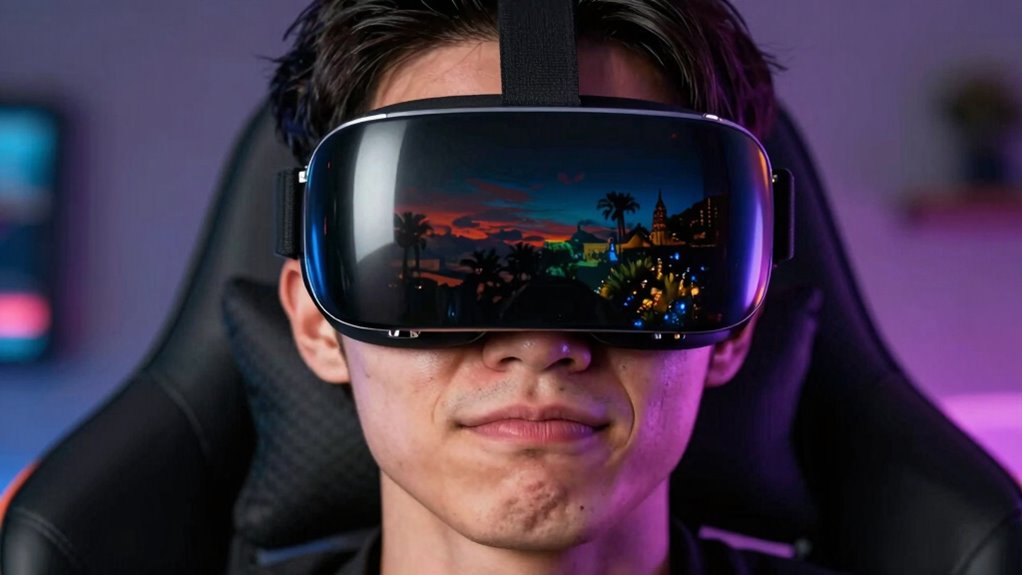
Have you ever wondered why some people feel dizzy or nauseous when using virtual reality? It all comes down to how your brain processes conflicting signals from your visual perception and vestibular system. When you wear a VR headset, your eyes see motion and changes in the environment, but your inner ear’s vestibular system doesn’t detect corresponding movement. This mismatch confuses your brain, creating a sense of disorientation. Your brain expects these signals to align, but when they don’t, it triggers symptoms like dizziness, nausea, and discomfort. Fundamentally, VR motion sickness occurs because your visual perception suggests movement, while your vestibular system remains still. This sensory conflict is the main culprit behind the unpleasant feelings many experience during extended VR sessions. Additionally, refresh rates and resolution of the VR headset can influence how severe these symptoms are by affecting how smoothly motion is perceived. Ensuring that the visual fidelity matches your expectations can help mitigate discomfort. Adjusting head tracking accuracy can also reduce the sensory mismatch and improve comfort during use. Improving system latency can further decrease the likelihood of experiencing motion sickness by making the response more immediate and natural. Moreover, optimizing frame rate consistency can help keep motion perception smooth and reduce dizziness.
How to Adjust Your VR Headset for Comfort and Reduced Nausea

To reduce motion sickness, start by optimizing the fit and comfort of your VR headset; a secure, snug fit prevents unnecessary movement and strain. Next, adjust the visual settings, like brightness and interpupillary distance, to match your eyes and reduce eye fatigue. Making these tweaks can substantially enhance your experience and help you feel more comfortable during use. Additionally, selecting natural, free-floating environments in your VR settings can minimize disorienting motion and improve overall stability during gameplay. Ensuring proper VR ergonomics can also decrease discomfort and nausea over extended sessions. Incorporating motion smoothing features can further help create a more comfortable and stable virtual experience. Paying attention to visual coherence can also help reduce sensory mismatch that often leads to motion sickness. Moreover, adjusting the frame rate to higher levels can significantly decrease lag and visual artifacts, further enhancing comfort during use.
Optimize Fit and Comfort
Ensuring your VR headset fits properly is essential for reducing motion sickness and increasing comfort during use. Focus on ergonomics to achieve a secure, balanced fit that minimizes pressure points and prevents slipping. Adjust straps so the headset sits comfortably without being too tight or too loose. Use accessories like face padding or adjustable face masks to improve comfort and proper alignment. Proper fit helps reduce eye strain and prevents unnecessary movements that can trigger nausea. Take the time to fine-tune the positioning of the lenses for clear, focused visuals. Remember, a well-fitted headset not only enhances immersion but also minimizes discomfort by reducing unnecessary adjustments and movements, making your VR experience more enjoyable and less likely to cause motion sickness. Additionally, understanding caregiving decisions related to equipment setup can help maintain optimal comfort and safety during extended use. Incorporating ergonomic principles into your setup can further enhance comfort and reduce fatigue over longer sessions. Paying attention to adjustable features ensures you can customize the fit for your unique head shape and preferences.
Fine-Tune Visual Settings
Adjusting the visual settings on your VR headset is essential for comfort and reducing motion sickness. Start by enhancing visual clarity; clear visuals help you stay grounded and minimize disorientation. Enable motion smoothing if available, as it reduces judder and jitter during movement, creating smoother experiences. Proper calibration of your headset’s visual settings can further improve comfort and reduce symptoms. Consider these key settings:
| Setting | Why it matters | Recommended adjustment |
|---|---|---|
| Visual Clarity | Sharp images reduce eye strain | Increase resolution/clarity |
| Motion Smoothing | Smooths motion to prevent nausea | Turn on or adjust intensity |
| Refresh Rate | Higher rates provide smoother visuals | Set to the maximum your device supports |
Fine-tuning these options can markedly lessen nausea and improve your VR experience. Additionally, consulting your specific water-cooled mattress pad setup can help optimize overall comfort during extended use, especially when combined with proper headset calibration. Incorporating comfort-enhancing accessories can further improve your overall experience and reduce discomfort during extended VR sessions. Exploring ergonomic adjustments can also contribute to more comfortable long-term use.
How to Fine-Tune Visual Settings to Minimize Disorientation
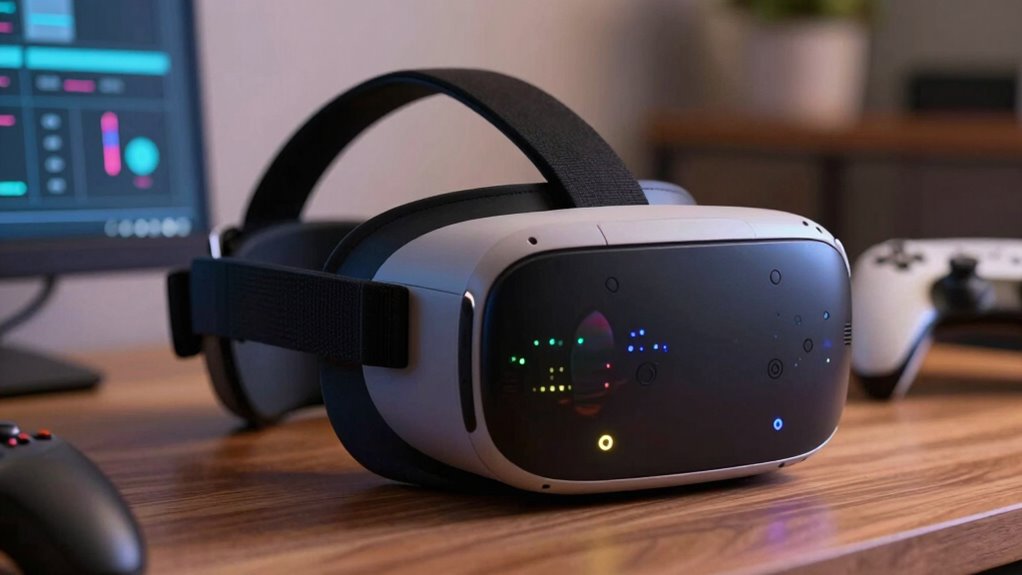
Fine-tuning your visual settings can considerably reduce disorientation in virtual reality. Start by minimizing visual disparity, which is the mismatch between your eyes’ perceptions and the virtual environment. Reducing this gap helps your brain better interpret motion and depth. Additionally, turn off or lower motion blur effects, as excessive blur can create a sense of disorientation and nausea. Adjust the field of view to a comfortable level—too wide can overwhelm your senses, while too narrow might feel unnatural. Brightness and contrast should be set to match your environment, preventing eye strain. Understanding visual disparity is essential for optimizing VR comfort. By carefully calibrating these visual elements, you enhance clarity and stability, making your VR experience more comfortable and less likely to induce motion sickness. Furthermore, becoming familiar with visual calibration techniques can help you quickly adapt to different VR settings and maintain comfort during extended use. Additionally, paying attention to cultural artifacts such as masks and decor can create a more immersive and calming environment, reducing overall disorientation during extended VR sessions. Incorporating natural lighting cues or familiar visual references can also aid in reducing visual disorientation and help your brain feel more at ease.
How to Optimize Frame Rate and Refresh Rate for a Smoother VR Experience

To reduce motion sickness, you need to optimize your VR’s frame rate and refresh rate. Start by adjusting your device’s frame rate settings for smoother visuals. Make sure your refresh rate matches your hardware’s capabilities for the best experience.
Adjust Frame Rate Settings
Have you ever wondered how optimizing your VR device’s frame rate and refresh rate can make your experience smoother and more comfortable? Adjusting frame rate settings helps reduce motion sickness and visual discomfort by ensuring consistent visuals. Higher frame rates create smoother motion, making virtual movements feel natural and less jarring. To optimize, set your device to the highest stable frame rate your hardware can handle. Be cautious of dropping below 60 FPS, as it can increase discomfort. Here’s a quick guide:
| Setting | Recommended Range | Impact on Comfort |
|---|---|---|
| Frame Rate | 90-120 FPS | Reduces motion sickness |
| Refresh Rate | 90-120 Hz | Smoother visuals |
| V-Sync | Enabled/Disabled | Prevents tearing, improves stability |
Adjust these settings to find the perfect balance for prolonged, comfortable VR sessions.
Match Refresh Rate to Hardware
Matching your VR device’s refresh rate to your hardware’s capabilities guarantees a smoother experience and reduces discomfort. Ensuring hardware compatibility is key; if your hardware struggles to keep up, motion sickness can worsen. Regular software updates often improve performance and fix bugs affecting refresh rates. To optimize, consider these tips:
- Check your VR headset’s supported refresh rates
- Adjust settings to match your GPU’s output
- Keep your graphics drivers current with updates
- Disable background apps that strain hardware
- Test different refresh rate options for comfort and clarity
How to Use Comfort Features Like Chase Cam and Teleportation

Using comfort features like chase cam and teleportation can substantially reduce motion sickness in VR. Chase cam allows you to view your surroundings from a third-person perspective, giving your eyes a stable reference point and easing discomfort. Teleportation, instead of smooth locomotion, minimizes the disorienting motion that often triggers nausea. To enhance comfort, ensure your controller has ergonomic grips for steady handling and quick reactions. Listening for audio cues can also help you anticipate movement, reducing surprise and disorientation. These features let you navigate more naturally without rapid head or body movements that can upset your inner ear. By combining chase cam and teleportation with ergonomic handling and audio cues, you create a more comfortable, less nauseating VR experience.
How to Calibrate Your VR Space for Better Stability and Comfort
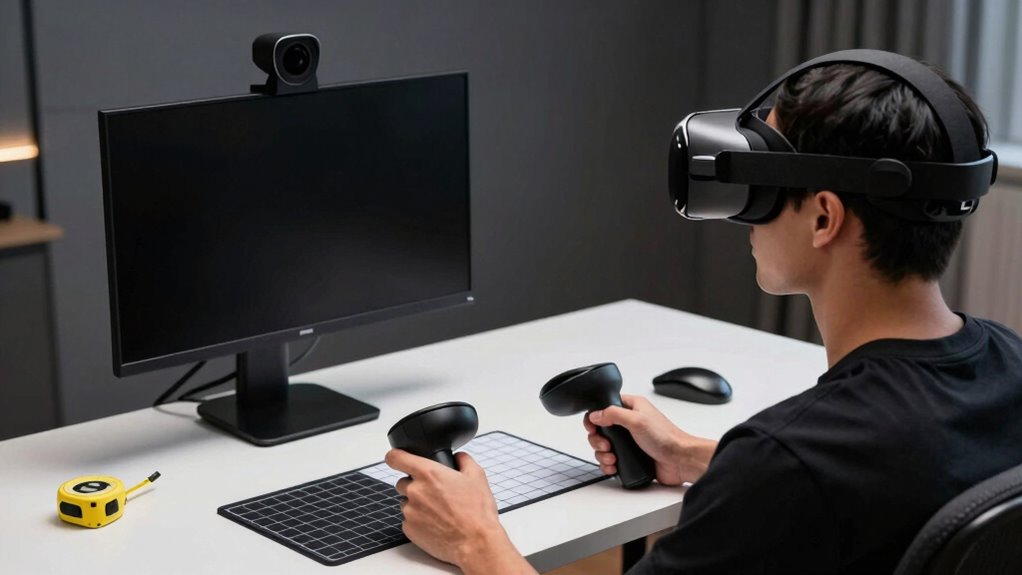
Calibrating your VR space is essential for maintaining stability and reducing discomfort during your sessions. Proper setup ensures your movements sync accurately with the virtual environment, minimizing motion sickness. To optimize, consider these steps:
Calibrating your VR space ensures smooth, comfortable experiences by aligning movements and reducing motion sickness.
- Adjust your play area to match your physical space, ensuring no obstacles.
- Use voice commands to quickly recalibrate or reset your boundaries.
- Enable haptic feedback calibration to improve tactile responses and immersion.
- Verify your tracking sensors are correctly positioned and clean.
- Fine-tune the in-game settings for stability, like smoothing or snap turning.
These adjustments help your VR system respond precisely, making your experience smoother and more comfortable. Proper calibration reduces disorientation, enhances haptic feedback, and keeps you centered in the virtual world.
How to Take Breaks and Gradually Get Used to VR
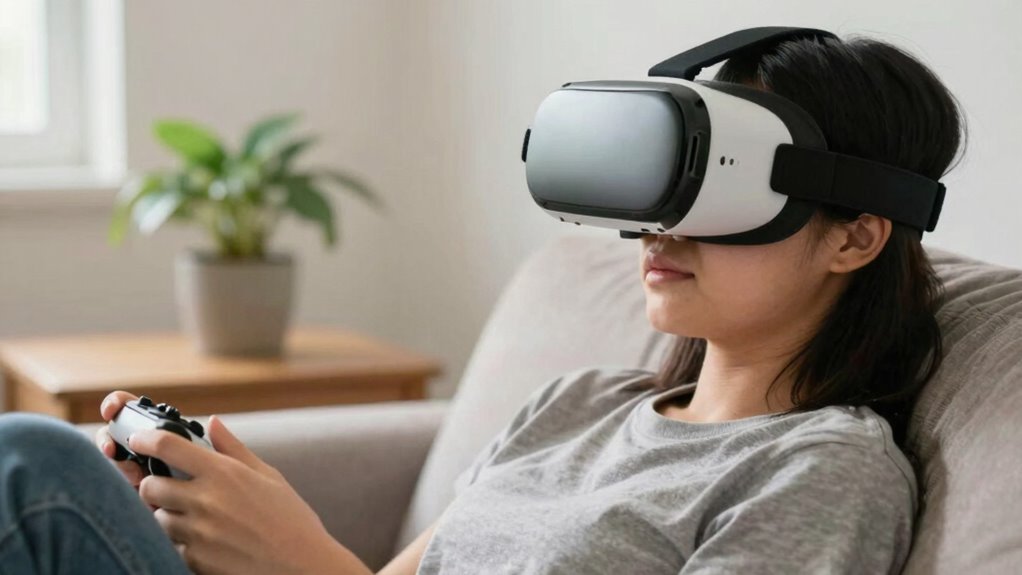
After ensuring your VR setup is properly calibrated, taking regular breaks becomes key to maintaining comfort and preventing motion sickness. During these breaks, stretch and rest your eyes to reduce fatigue. Using ergonomic accessories, like comfortable padding or adjustable straps, can make prolonged sessions easier. Keep headset hygiene in mind—clean your headset regularly to avoid discomfort and skin irritation. Gradually increase your VR exposure time, starting with short sessions and slowly extending them as your body adapts. Listen to your body: if you feel dizzy or nauseous, pause immediately. Consistent breaks and proper headset maintenance help your brain adjust to virtual environments, making it easier to get used to VR without overwhelming symptoms. Patience and care are essential for a smoother, more comfortable experience.
Which VR Content and Games Are Less Likely to Cause Motion Sickness
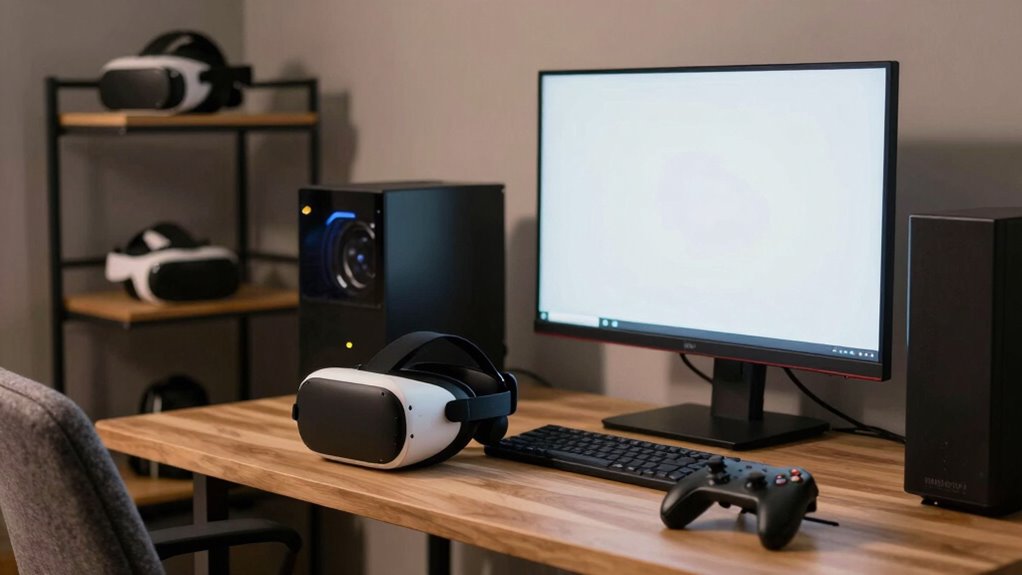
Choosing VR content that’s less likely to cause motion sickness can considerably improve your experience. Opt for games and experiences with gentle, predictable movements and minimal rapid shifts. Look for VR content with strong stationary elements, which reduce disorienting motion. Games designed with comfort in mind often feature smooth camera controls and limited head-tracking. Prioritize titles that emphasize exploration over fast-paced action or complex movement. Well-crafted game design that avoids abrupt turns or sudden accelerations helps prevent discomfort. Keeping these factors in mind can make VR more enjoyable and less overwhelming.
Some VR content less likely to cause motion sickness includes:
- Virtual tours and scenic exploration apps
- Puzzle and strategy games with minimal movement
- Meditation and relaxation experiences
- Story-driven experiences with static viewpoints
- Artistic or creative VR tools
What If I Still Feel Sick? Troubleshooting Tips
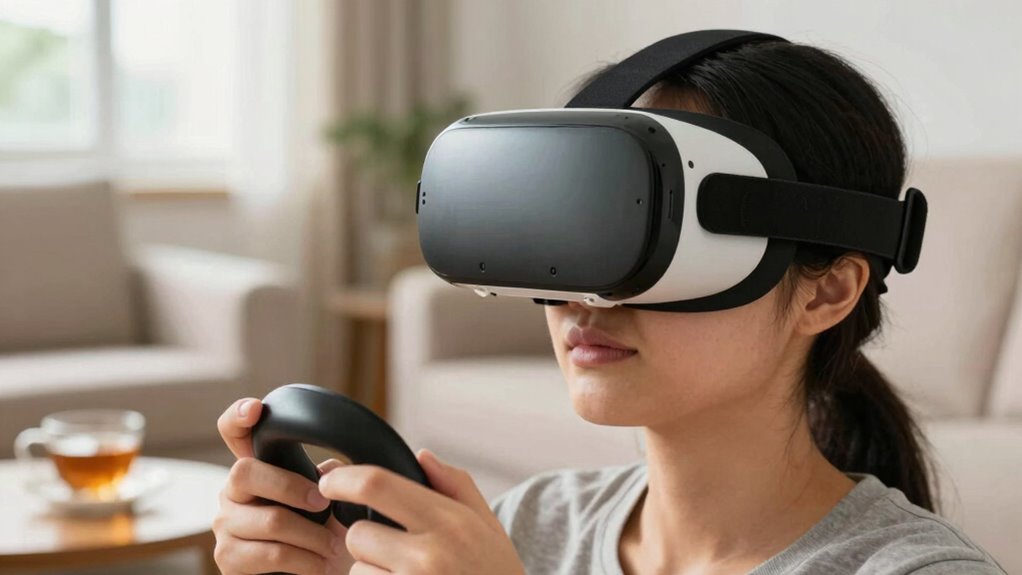
Even if you select VR experiences designed to minimize motion sickness, you might still experience discomfort. If that happens, try adjusting your headset for better ergonomic design—ensure it fits comfortably and reduces strain. Take regular breaks to give your sensory system time to adapt through sensory adaptation, which can lessen symptoms over time. Slow down your movement within the VR environment, avoiding rapid or jerky motions, and consider reducing the field of view to lessen visual overload. Keep ambient lighting consistent and stay well-hydrated. If symptoms persist, gradually increase your VR exposure to help your brain adapt better. Remember, patience is key. These troubleshooting tips can help you find a comfortable balance, making VR experiences more enjoyable and less likely to cause sickness.
Frequently Asked Questions
Can Specific VR Headsets Reduce Motion Sickness More Effectively?
Yes, certain VR headsets can diminish motion sickness more effectively. Look for models with features like adjustable refresh rates, low latency, and integrated eye tracking. An ergonomic design ensures comfort during extended use, minimizing discomfort that can worsen motion sickness. These features work together to create a smoother, more natural experience, helping you stay immersed without feeling queasy or disoriented. Choose headsets that prioritize these aspects for a more comfortable VR experience.
Do Different Types of VR Content Vary in Causing Discomfort?
Imagine a gentle breeze guiding you through different landscapes—that’s how VR content styles can influence your comfort. Some content, like fast-paced games or jittery visuals, may stir discomfort, while calm, well-designed experiences ease your journey. User experience factors, such as smooth motion and clear visuals, play a vital role in minimizing discomfort. So, choose your VR content styles wisely to guarantee a smoother, more enjoyable adventure.
How Long Should I Initially Use VR to Prevent Sickness?
You should start with short VR sessions, around 10-15 minutes, to prevent sickness. During this time, focus on ergonomics optimization by adjusting your headset fit for comfort and stability. Take breaks often, and gradually increase your session length as your body adapts. Proper headset fit adjustments help reduce discomfort, while listening to your body’s signals guarantees you don’t overexpose yourself, making VR a more enjoyable experience.
Are There Recommended Medications or Supplements to Lessen VR Nausea?
VR nausea can feel like a rollercoaster from hell, but certain medication options and supplements might help. Antihistamines like Dramamine and meclizine are popular choices for reducing motion sickness, and some find ginger supplements effective at calming their stomachs. However, consult your healthcare provider before trying any medication or supplement, as effectiveness varies, and safety is key. Your best bet is to combine these with proper VR settings for a smoother experience.
Can Adjusting Room Lighting Impact VR Motion Sickness Levels?
Adjusting your room lighting can definitely impact VR motion sickness levels. Keep ambient lighting soft and consistent to reduce eye strain and help your eyes adapt better to the VR headset. Also, lower your screen brightness if possible, as high brightness can increase discomfort. By creating a comfortable environment with balanced ambient lighting and ideal screen brightness, you can minimize motion sickness and enjoy VR sessions more comfortably.
Conclusion
Remember, patience is key—like tending a delicate garden, it takes time for your VR experience to flourish comfortably. By adjusting settings, taking breaks, and choosing suitable content, you can minimize motion sickness and enjoy virtual worlds without discomfort. Don’t rush the process; gradually building familiarity helps your body adapt. With persistence, VR becomes a seamless extension of your reality, proving that, sometimes, slow and steady truly wins the race.