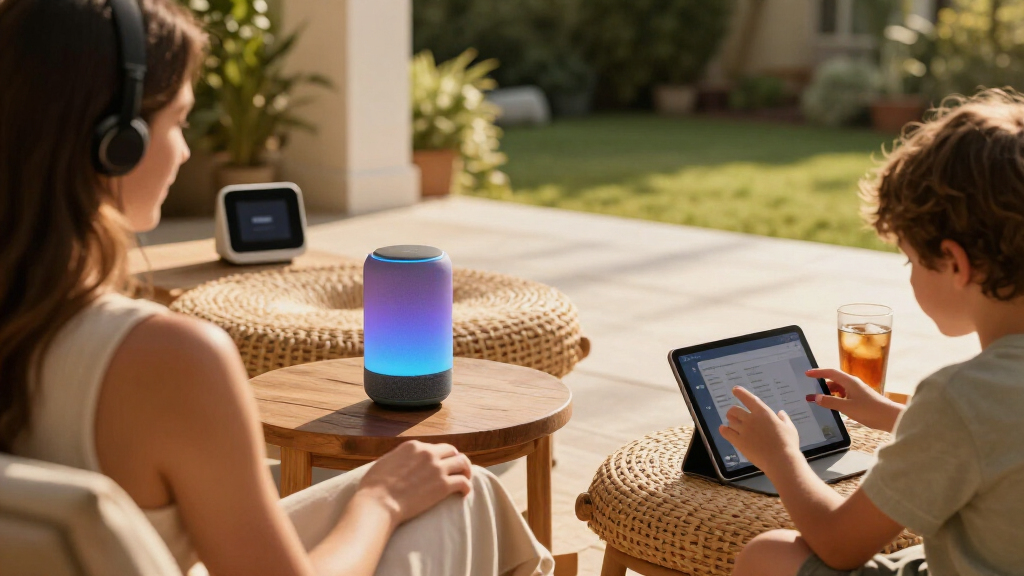
Set up an Amazon Echo speaker or display, connect it to your home Wi-Fi, and test Alexa with a basic voice command. This guide is for first-time Echo owners and anyone setting up a device after a reset. Allow 15-30 minutes; you will need a phone or tablet, the Alexa app, an Amazon account, and access to your Wi-Fi password.

Get your next haul delivered free — and shop member deals
- Fast, free delivery on millions of items
- Access to Prime Big Deal Days deals on October 6–7
- Prime Video, Amazon Music and more included

Amazon Echo Show 11 Smart Display, Full-HD Touchscreen with Spatial Audio, Graphite
- ✔ Display: 11-inch Full-HD touchscreen
- ✔ Audio: Spatial audio
- ✔ Smart home hub: Built in

Amazon Echo Dot (5th Gen) Smart Speaker, Deep Sea Blue
- ✔ Generation: 5th Gen
- ✔ Dimensions: 3.9 × 3.9 × 3.5 in (100 × 100 × 89 mm)
- ✔ Weight: 10.7 oz (304 g)

Amazon Echo Show 15 Full HD Smart Display with Fire TV
- ✔ Display size: 15.6 inches
- ✔ Resolution: Full HD (1080p)
- ✔ Built-in entertainment: Fire TV
Difficulty: Beginner | Time: 15-30 minutes
What You’ll Need
Tools & Materials:
- Amazon Echo speaker or Echo Show display with its power adapter
- Phone or tablet that can install the Amazon Alexa app
- Amazon account login
- Wi-Fi network name and password
Knowledge:
- Basic ability to install an app and follow on-screen prompts
- Ability to select your home Wi-Fi network and enter its password
Place the Echo within range of your Wi-Fi router and near a power outlet. Have your Amazon account password ready. If you use two-step verification, keep access to the phone or email that receives the sign-in code. Setup screens can vary by device model and app version, so follow the closest matching prompts shown in the app.
Amazon Echo Show 11 Smart Display, Full-HD Touchscreen with Spatial Audio, Graphite
The Echo Show 11 is the most balanced choice in this group because its 11-inch Full-HD touchscreen adds useful visual context without turning Alexa into a large wall display. We can use the screen for recipes, calendars, streaming, photo slideshows, and video calls, while spatial audio gives it a more expansive sound profile than the Echo Dot’s single mono driver. Its built-in smart home hub also gives it a broader role than a display used only for media.Compared with the Echo Show 15, the Show 11 asks for less space and is less focused on a family-wide entertainment dashboard. It does not include the Show 15’s listed Fire TV integration or its dedicated privacy shutter. Compared with the Echo Dot, though, it offers a much richer way to see information and control compatible devices. Buyers should keep in mind that some smart home features depend on compatible Alexa products and services; if voice-first simplicity is all we need, the Dot is a more compact fit.
Pros:
- 11-inch Full-HD touchscreen gives visual tasks room to breathe
- Spatial audio offers a more immersive sound experience than the Dot’s mono playback
- Built-in smart home hub supports compatible device control
- Auto-framing camera helps keep callers in view
Cons:
- Some features require compatible Alexa devices or services
- Larger footprint than a compact speaker such as the Echo Dot
Best for: Households that want a versatile countertop Alexa display for video calls, recipes, media, and compatible smart home control.
Not ideal for: Buyers who want a small, screen-free speaker or a large family display with built-in Fire TV.
Bottom line: We recommend the Echo Show 11 as the strongest all-around Amazon device here because it balances screen, sound, and smart home functions.
“We recommend the Echo Show 11 as the strongest all-around Amazon device here because it balances screen, sound, and smart home functions.”
Amazon Echo Dot (5th Gen) Smart Speaker, Deep Sea Blue
When we mainly want timers, alarms, answers, routines, and audio playback, the Echo Dot (5th Gen) is the practical pick. Its compact 3.9-inch-square body is easy to place where a display would be unnecessary, and the 1.6-inch full-range driver handles music, audiobooks, and podcasts in a mono format. That makes it a simple way to add Alexa to a room without committing to a screen-centered setup.Its role is narrower than either Echo Show: we do not get visual calendars, video calls, or the Shows’ touch controls. The Show 11 is the more capable shared device, while the Show 15 is better suited to a family space where a large display and Fire TV are priorities. The Dot’s special advantage is that it stays unobtrusive. It can also extend a compatible eero network, but that coverage depends on compatible eero equipment and linked accounts, so we should not treat it as a standalone Wi-Fi upgrade. Buyers who want richer sound or a visual interface should look up the lineup to the Show 11.
Pros:
- Compact body fits on a desk, bedside table, or kitchen counter
- Supports music, audiobooks, podcasts, timers, alarms, and routines
- Works with compatible smart home standards including Matter
- Can extend a compatible eero network
Cons:
- Mono playback and a small driver are less immersive than the Show 11’s spatial audio
- eero extension requires compatible equipment and linked accounts
- Does not provide a display for video calls, recipes, or calendars
Best for: People who want a small Alexa speaker for voice requests and everyday audio, especially in rooms where a screen is not needed.
Not ideal for: Buyers who want video calls, touch controls, visual smart home dashboards, or a large shared entertainment display.
Bottom line: We would choose the Echo Dot when compact voice control matters more than the screen and broader capabilities of either Echo Show.
“We would choose the Echo Dot when compact voice control matters more than the screen and broader capabilities of either Echo Show.”
Amazon Echo Show 15 Full HD Smart Display with Fire TV
The Echo Show 15 is designed to be seen and shared. Its 15.6-inch Full-HD screen gives family calendars, to-do lists, photos, and smart home controls more room than the Show 11, and Fire TV is built in for streaming apps. That combination makes it the most convincing choice for a common area where people want to glance at household information and also use the display for entertainment.That larger format is also the main tradeoff: it is less discreet and more specialized than the Show 11, which is our better all-around balance. The Show 15 also makes less sense than the Echo Dot if we simply need voice requests and audio in a small room. Its auto-framing camera supports video calls, and the physical camera shutter plus microphone and camera-off button give us direct privacy controls. Streaming content may require a subscription, so the built-in entertainment experience does not mean every service or program is included. Choose this model for a shared screen first; skip it if we have nowhere prominent to place it or do not need its visual workspace.
Pros:
- 15.6-inch Full-HD display gives shared calendars and widgets a prominent canvas
- Fire TV provides access to streaming apps
- Touch and voice controls support compatible smart home devices
- Camera shutter and off button offer direct privacy controls
Cons:
- Large screen needs a more prominent placement than the Show 11 or Dot
- Some streaming content may require a subscription
- Its family-dashboard strengths may be unnecessary for buyers who mainly want voice assistance
Best for: Families or households that want a large shared screen for calendars, to-do lists, compatible smart home controls, photos, and streaming.
Not ideal for: Buyers with limited display space, those seeking an inexpensive-feeling compact Alexa setup, or anyone who does not need a large visual hub.
Bottom line: We recommend the Echo Show 15 for shared household organization and streaming, while the Show 11 is the more versatile everyday display.
“We recommend the Echo Show 15 for shared household organization and streaming, while the Show 11 is the more versatile everyday display.”
As an Amazon Associate we earn from qualifying purchases.
Before You Start
Use the power adapter supplied for your Echo. A different adapter may not provide enough power. Keep your Wi-Fi password private, and connect the device only to a network you are authorized to use. If this is a secondhand Echo, ask the previous owner to deregister it from their Amazon account before setup; a device still tied to another account may not complete registration.
Step-by-Step Instructions
Step 1: Install the Alexa app
Open the Apple App Store or Google Play Store on your phone or tablet. Search for “Amazon Alexa,” confirm that the publisher is Amazon, then install and open the app. Allow Bluetooth or local network access if prompted, since the app may use it to find and configure nearby Echo devices.
Tip: If the app is already installed, update it before setup so its screens and device support are current.
Check: The Alexa app opens and displays a sign-in or welcome screen.
Step 2: Sign in to your Amazon account
Enter the email address or phone number and password for the Amazon account you want associated with the Echo. Complete any verification prompt, such as entering a one-time code. If you do not have an account, use the app’s account-creation option and finish that process before continuing.
Tip: Use the account that should manage the device, routines, and Alexa settings. Avoid sharing your password with other household members; they can use supported household or profile features later.
Check: The app shows its Alexa home screen or a prompt to add or set up a device.
Step 3: Power on the Echo
Set the Echo on a stable surface, then connect its supplied power adapter to the device and a wall outlet. Wait for it to start. An Echo speaker may show a colored light ring; an Echo Show may display a welcome or setup screen. Startup can take a minute.
Tip: Do not unplug the Echo while it is starting or installing an update. If no light or screen appears after a minute, check that both ends of the power connection are firmly seated.
Check: The device shows a startup light or setup message and remains powered on.
Step 4: Add the Echo in the Alexa app
In the Alexa app, open the Devices area and tap the add button, often shown as a plus sign. Choose Add Device, select Amazon Echo, then choose the model or the closest available category. Follow the prompts to let the app search for the device. If the Echo is not found, put it into setup mode using the instructions shown for your model, then search again.
Tip: Setup mode often has an orange light ring or an on-screen setup message. Button combinations vary between models, so use the app’s model-specific instructions instead of guessing.
Check: The app identifies your Echo or proceeds to a screen for selecting a Wi-Fi network.
Step 5: Connect the Echo to Wi-Fi
Select your home Wi-Fi network from the list and enter its password exactly as written, including capitalization. Wait while the app sends the network details to the Echo. Keep the phone near the device during this process and leave the Alexa app open until it reports that the connection is complete.
Tip: If your router broadcasts separate 2.4 GHz and 5 GHz network names, choose a network supported by your Echo model and available where the device is placed. Do not select a guest network if it blocks communication between devices.
Check: The app confirms that the Echo is online or advances to the final setup screen.
Step 6: Finish device settings
Give the Echo a recognizable name, such as “Kitchen Echo,” and assign it to a room if the app offers those choices. Review optional settings for location, time zone, language, and voice preferences. On an Echo Show, follow the display prompts as well. Skip optional services you do not want; you can change many settings in the app later.
Tip: Choose a device name that is easy to recognize in the Alexa app, especially if you plan to set up more than one Echo.
Check: The app lists the Echo under Devices, usually with its assigned name and room.
Step 7: Test Alexa and adjust placement
Stand a few feet away and say the wake word shown in the app or device settings, followed by a simple request such as, “What time is it?” Wait for Alexa’s spoken response or, on a display, a matching visual result. If the device responds, move it to its intended position and test once more from the normal listening area.
Tip: Keep the microphone openings clear and avoid placing the Echo directly beside a television or other loud speaker. You can mute the microphone with the device’s microphone button when you want Alexa to stop listening for the wake word.
Check: Alexa answers a simple request from the intended location, and the app shows the Echo as online.
Common Mistakes to Avoid
- Entering the Wi-Fi password incorrectly or choosing a similarly named network. — Check the network name before selecting it, then re-enter the password carefully, including uppercase and lowercase letters.
- Closing the Alexa app or moving the phone away during setup. — Keep the app open and the phone near the Echo until the app confirms the device is connected.
- Using an unsuitable outlet, power adapter, or location with weak Wi-Fi. — Use the supplied adapter and start setup near the router; move the device to its final location only after connection succeeds.
Troubleshooting
Problem: The Alexa app cannot find the Echo.
Solution: Check that the Echo is powered on and in setup mode, then retry the search. Turn on Bluetooth and local network access for the Alexa app if requested. Keep the phone close to the Echo and restart the setup flow if the device still does not appear.
Problem: The Echo will not connect to Wi-Fi.
Solution: Confirm that the Wi-Fi password works on another device and select the correct network name. Move the Echo and phone closer to the router, then retry. Restart the router only if other devices also have connection trouble.
Problem: The Echo connects, but Alexa does not respond.
Solution: Check that the microphone is not muted, speak the wake word clearly, and reduce nearby noise. Confirm that the device appears online in the Alexa app. If needed, unplug the Echo briefly, reconnect it, wait for startup, and test again.
Problem: A secondhand Echo says it is registered to another account.
Solution: Ask the previous owner to deregister the Echo from their Amazon account or remove it through their Alexa app. Then reset the Echo according to the model instructions and run setup again.
What Success Looks Like
The Echo appears in the Alexa app under Devices, shows as online, and answers a basic voice request from its intended location. An Echo Show should also display its normal home screen or the result of your request. If one of these checks fails, use the matching troubleshooting item and repeat the test.
Next Steps
Explore the Alexa app’s settings to review privacy controls, microphone options, voice history, and any services you want to connect. Add smart-home devices only when you are ready, and check that each one works before creating routines. If you move the Echo to another room, test Wi-Fi and voice response again. For persistent hardware or account errors, use Amazon’s device support with the Echo model and any error message available.
Frequently Asked Questions
Can I set up an Echo without the Alexa app?
Most Echo setup flows use the Alexa app on a phone or tablet. Follow the setup instructions for your model, since available options may differ. A computer browser can manage some Amazon account settings, but it may not replace the app’s device discovery and Wi-Fi setup.
Does the Echo need to stay near the router?
No. It needs a reliable Wi-Fi signal at its final location. Set it up near the router first if discovery or connection is difficult, then move it and test again. If it goes offline in the new location, choose a spot with stronger coverage.
What if I changed my Wi-Fi password?
Open the Alexa app, select the Echo in Devices, and look for its Wi-Fi or network settings. Follow the prompts to connect it to the updated network. If the app cannot reach the Echo, use the device’s setup-mode instructions and run the connection flow again.
Can several people use one Echo?
Yes. People in the home can speak to Alexa, though account-linked features may use the Amazon account that registered the device. Review household, profile, and voice-recognition options in the app if you want more personalized results.
Fall Picks
fall essentials
As an affiliate, we earn on qualifying purchases.