Your comfort isn’t just about monitor size; it’s mainly about how close or far you sit from the screen. Sitting too close can cause eye strain, while sitting too far can reduce details and strain your eyes trying to focus. Ideally, your monitor should be about an arm’s length away, with the top at eye level. If you want to learn simple ways to improve your setup, keep going for helpful tips.
Key Takeaways
- Proper viewing distance, typically 20-30 inches, is more critical for comfort and clarity than monitor size.
- Sitting too close causes eye strain regardless of monitor size, while the right distance improves visual focus.
- Adjusting your monitor’s position to an optimal distance reduces fatigue and supports ergonomic posture.
- Larger monitors require more space and may cause discomfort if not placed at an appropriate distance.
- Maintaining correct distance helps prevent eye strain, headaches, and long-term vision issues, regardless of monitor dimensions.
Why Your Monitor Size Isn’t the Main Factor in Comfort
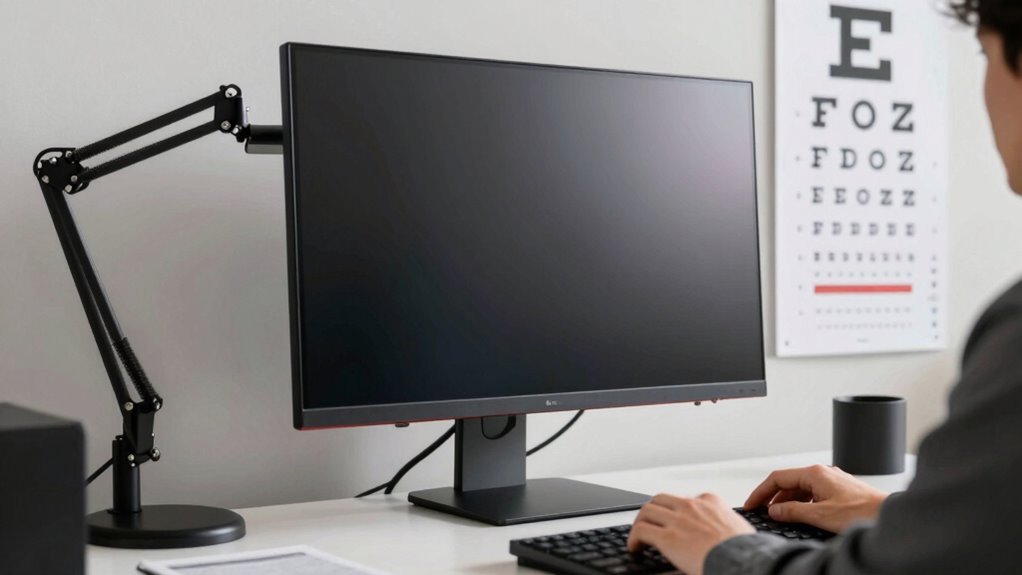
Many people assume that a larger monitor automatically means greater comfort, but that’s not always the case. The key to comfort isn’t just size; it’s how you set up your workspace. Ergonomic chairs help maintain proper posture, reducing strain during long hours. Equally important is screen calibration, which ensures your display isn’t overly bright or dim, preventing eye fatigue. A larger monitor can be uncomfortable if it forces you to turn your head or sit too close. Instead, focus on the right monitor size for your desk and ensure your setup aligns with ergonomic principles. Proper calibration and an ergonomic chair create a comfortable environment, making viewing easier regardless of screen size. Comfort depends on overall setup, not just the monitor’s dimensions. Additionally, understanding the importance of viewing distance can significantly improve your comfort and reduce strain over time. Maintaining an appropriate monitor placement helps optimize your ergonomic setup and minimizes discomfort during extended use. Recognizing air quality factors in your workspace can also contribute to overall comfort and well-being. Furthermore, paying attention to lighting conditions can help prevent glare and reduce eye strain during long periods of screen time.
How Viewing Distance Affects Clarity and Eye Comfort
Your viewing distance directly impacts how clear your screen appears and how comfortable your eyes stay over time. Sitting too close can cause eye strain, while being too far may reduce detail and focus. Finding the right distance helps you see clearly and avoid unnecessary discomfort. Proper screen calibration can further enhance viewing comfort and image clarity. Additionally, maintaining an appropriate viewing distance can support your overall eye health and reduce fatigue. Being mindful of ambient conditions such as temperature and humidity can improve overall comfort during long viewing periods. Ensuring the correct lighting setup can also help minimize glare and reduce eye strain during extended use.
Optimal Distance for Clarity
Finding the ideal viewing distance is essential for maintaining clarity and reducing eye strain when using a monitor. Position yourself so that the screen is about an arm’s length away, typically 20-30 inches, depending on monitor size. This distance helps you see details clearly without squinting or straining your eyes. Maintain an ergonomic posture by keeping your head level and shoulders relaxed, which supports your neck and eye comfort. Also, guarantee ambient lighting isn’t too harsh or uneven, as glare can force you to adjust your distance and strain your eyes further. Adjusting your monitor to the right distance promotes better visual clarity and encourages healthy habits, making your workspace more comfortable and less tiring over long periods. Being mindful of your viewing distance can significantly impact your overall visual comfort and reduce fatigue during prolonged screen use.
Eye Strain Prevention
Maintaining the right viewing distance is essential for preventing eye strain during extended monitor use. When you sit at an ideal distance, your eyes focus naturally, reducing fatigue and discomfort. Ensure your ergonomic seating supports good posture, keeping your monitor at eye level. Proper ambient lighting minimizes glare and prevents your eyes from constantly adjusting. Use the following guide to enhance your setup:
| Distance | Lighting Tips | Seating Advice |
|---|---|---|
| 20-30 inches | Soft, indirect light | Adjust chair for comfort |
| Avoid glare | Use blinds or diffusers | Keep feet flat on floor |
| Reduce reflections | Minimize screen reflections | Maintain upright posture |
Maintaining an optimal viewing distance can significantly improve your visual comfort and overall experience.
Find Your Perfect Viewing Distance in Easy Steps
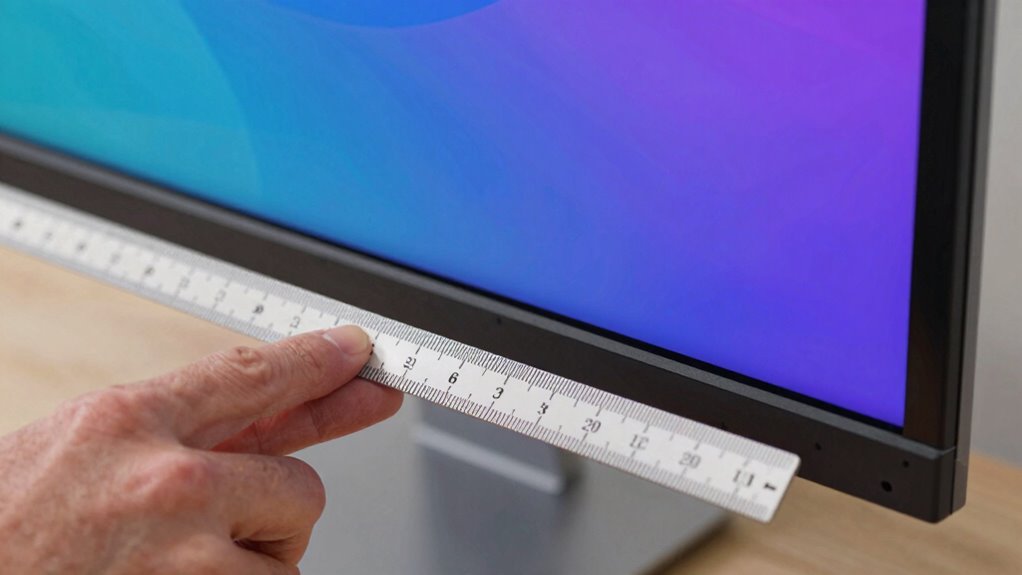
Determining the ideal viewing distance is essential for a comfortable and immersive experience. Start by sitting in ergonomic seating that supports good posture, ensuring you’re relaxed yet alert. Position your monitor so that the top of the screen is at eye level, which helps keep your neck straight. To find the right distance, measure about an arm’s length from your eyes to the screen—typically 20 to 30 inches. Adjust your monitor calibration settings to optimize brightness, contrast, and color accuracy, reducing eye strain. Test different distances by sitting comfortably and observing if the display feels natural without leaning forward or squinting. Fine-tuning your setup guarantees you enjoy clear visuals and reduce fatigue, making your workspace both productive and comfortable. Proper monitor placement is also key to maintaining good eye health and overall comfort during extended use. Additionally, considering recommended viewing distances for different monitor sizes can enhance your viewing comfort and prevent visual fatigue. Understanding how eye health and ergonomics impact your visual comfort can further improve your setup and prevent strain. Incorporating adjustable monitor stands can help achieve optimal positioning and support your ergonomic needs. Remember that lighting conditions in your environment also play a crucial role in reducing glare and reflections on your screen.
Common Mistakes in Monitor Placement and How to Fix Them
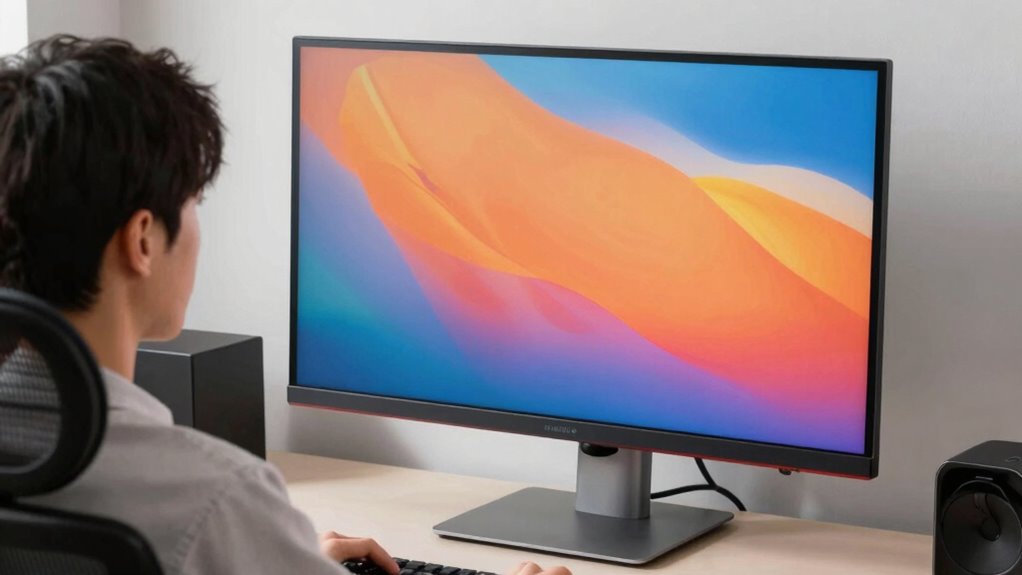
Many people place their monitors too close or too far from their eyes, which can cause discomfort. Ensuring the monitor is at the proper height and angle helps reduce strain and improves posture. Correct placement involves adjusting for ideal viewing distance, height, and screen tilt for a more comfortable experience. Additionally, considering seasons and lighting conditions can help reduce glare and eye strain during extended viewing sessions. Incorporating smart lighting adjustments can further optimize ambient light levels to match your monitor setup and reduce eye fatigue. Using ergonomic principles to align your monitor setup can also contribute to better overall comfort and prevent long-term strain. Being aware of ambient noise levels and implementing soundproofing solutions can create a more focused and distraction-free environment for extended screen time. Paying attention to screen brightness settings to match surrounding light conditions can significantly decrease eye strain during long periods of use.
Optimal Viewing Distance
One common mistake in monitor placement is setting the screen too close or too far from your eyes, which can cause discomfort and reduce productivity. The ideal viewing distance depends on your monitor size, but generally, it should be about arm’s length away—roughly 20 to 30 inches. Staying within this range helps maintain an ergonomic posture, reducing neck and eye strain. Additionally, consider your workspace lighting; glare or reflections can force you to adjust your position constantly. Proper positioning involves not only distance but also ensuring your monitor is at a comfortable height, so your eyes look slightly downward. An awareness of ergonomic principles can guide you to optimize your workspace setup. Avoiding these mistakes creates a more comfortable setup, minimizes fatigue, and boosts focus throughout your workday.
Proper Monitor Height
Making sure your monitor is at the right height is essential for maintaining good posture and preventing discomfort. When your monitor is too high or low, it can strain your neck and lead to poor ergonomic posture. To fix this, follow these steps:
- Adjust your monitor so the top of the screen is roughly at eye level, keeping your head straight.
- Calibrate your monitor to ensure accurate colors and sharpness, which reduces eye strain.
- Use a stand or riser if necessary to achieve the proper height without compromising comfort.
- Consider inclusive casting and accessible design principles to create a workspace that accommodates diverse needs and promotes ergonomic health for all users. Incorporating ergonomic workspace design can further enhance comfort and prevent strain during long periods of use.
Correct Screen Angle
While adjusting your monitor’s height is important, setting the correct screen angle is equally essential to prevent eye strain and discomfort. An ergonomic posture depends on having the monitor tilted slightly upward, so your eyes naturally gaze downward at the screen. Avoid angles that cause you to crane your neck or look too far up or down. Additionally, consider ambient lighting to reduce glare and reflections, which can force you to adjust your screen angle unnecessarily. Keep the monitor facing directly in front of you, avoiding sharp angles that cause neck or eye strain. A properly angled screen helps maintain a neutral head position, reducing fatigue and promoting comfort during long work sessions. Correct screen angle is key to creating an ergonomic workspace.
Choosing the Best Monitor Size for Your Space and Needs

Choosing the right monitor size depends on your available space and how you’ll use it. To guarantee ergonomic posture and good desk ergonomics, pick a size that fits comfortably without forcing you to crane your neck or lean forward. Consider these tips:
- Measure your desk space carefully to avoid overcrowding.
- Think about your main use—gaming, work, or creative tasks—since each benefits from different sizes.
- Opt for a size that allows you to view the entire screen comfortably without straining your eyes or neck.
A monitor that’s too large can overwhelm your space, while one that’s too small may hinder productivity. Balancing size with your desk setup helps maintain good ergonomic posture and keeps your workspace efficient.
Signs You’re Sitting Too Close or Too Far From Your Screen
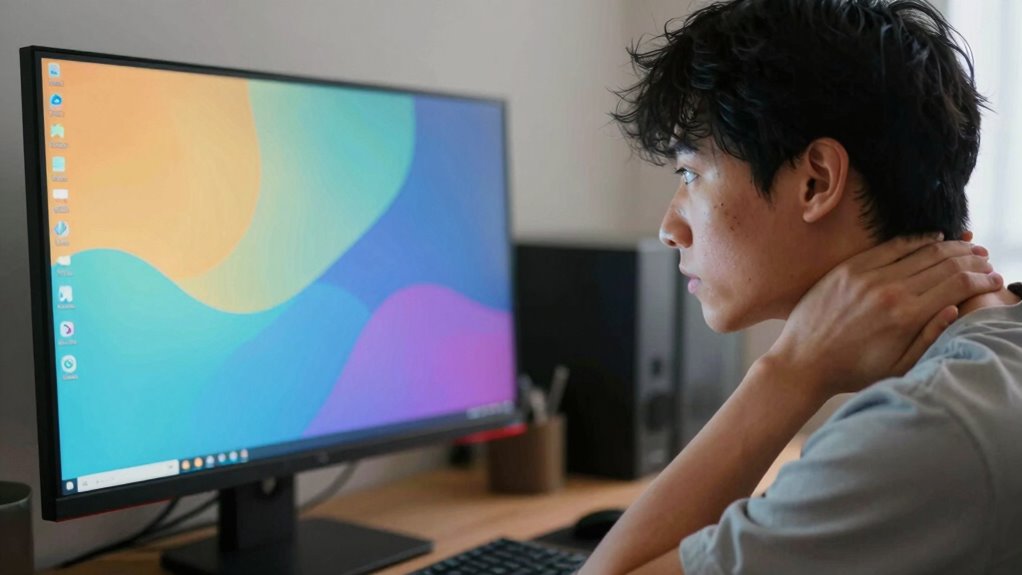
Your sitting distance from the screen can considerably impact your comfort and eye health. If you’re too close, your eyes strain, and details may blur. Sitting too far causes you to lean forward, leading to poor posture. Signs include frequent eye fatigue, headaches, or needing to adjust color calibration often. Use ergonomic accessories to maintain proper posture and keep the monitor at a comfortable distance. Check this table for clues:
| Sign | Too Close | Too Far |
|---|---|---|
| Eye strain | Yes | No |
| Headaches | Yes | No |
| Blurred details | Yes | No |
| Posture issues | Yes | Yes |
Adjust your distance accordingly for better comfort and visual clarity.
Simple Tips to Adjust Your Workspace for Better Viewing
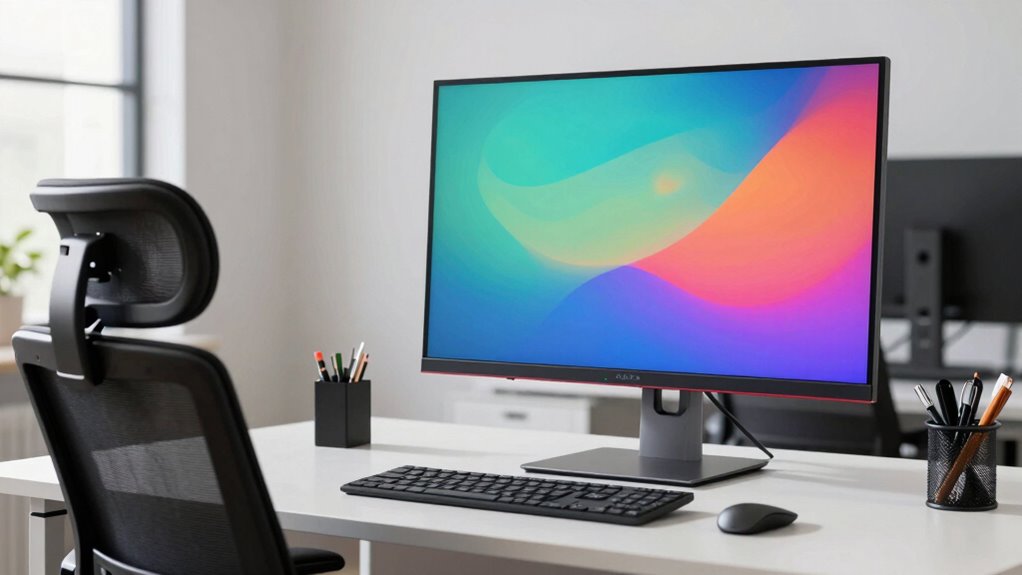
Adjusting your workspace is essential for comfortable viewing and maintaining eye health. Start by using ergonomic accessories like adjustable monitor stands and supportive chairs to set the right height and angle. Next, optimize ambient lighting by reducing glare with curtains or soft, indirect lights to prevent eye strain. Finally, position your monitor so that the top of the screen is at or just below eye level and about an arm’s length away. This setup helps keep your eyes focused naturally and reduces fatigue. Remember, small adjustments can make a big difference. Focus on creating an environment that minimizes glare, promotes good posture, and allows for easy adjustments as needed. These simple tips ensure you view comfortably and protect your eyes during long work sessions.
How Screen Resolution and Distance Impact Sharpness
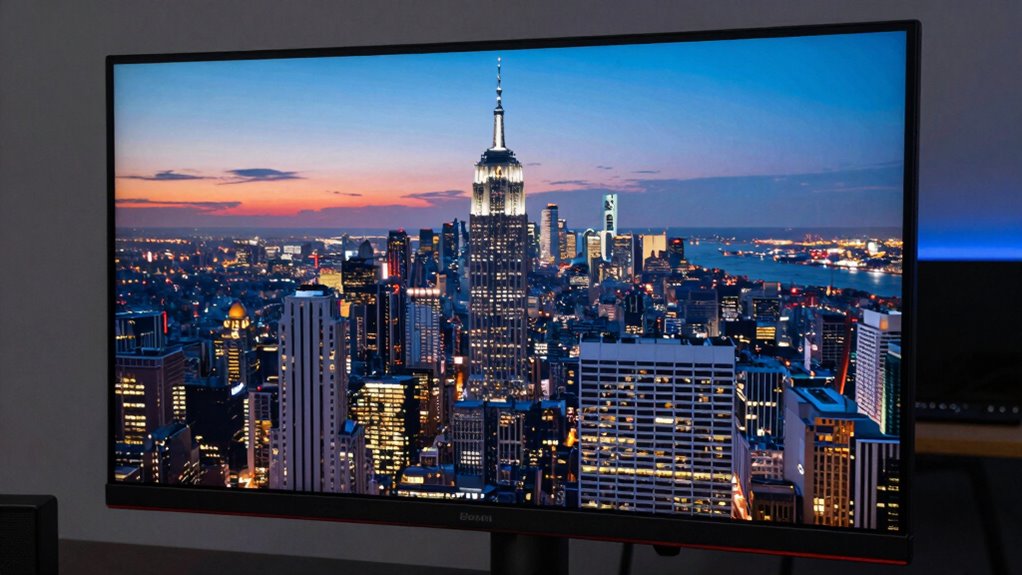
Your screen’s resolution and how far you sit from it directly affect sharpness. When pixel density is higher, images look clearer, especially at the right distance. Understanding these factors helps you find the perfect balance for crisp, detailed visuals.
Pixel Density Matters
Pixel density plays a essential role in determining how sharp and clear images appear on your screen. Higher pixel density means more pixels per inch, which enhances screen sharpness and detail. When your pixel density is high:
- Text appears crisper and easier to read, reducing eye strain.
- Images look more lifelike, with finer detail and less pixelation.
- You can sit closer without noticing pixel grid lines, improving immersion.
Conversely, low pixel density can make your display look blurry or pixelated. The key is finding the right balance between resolution and viewing distance. Keep in mind that even the largest monitor can deliver sharp images if it has a high pixel density, ensuring you get the best clarity regardless of size.
Optimal Viewing Distance
The sharpness of your display depends heavily on choosing the right viewing distance relative to its resolution. When you sit too close, pixelation becomes noticeable, reducing clarity. Conversely, sitting too far can make details hard to see, especially with high-resolution screens. To maintain ideal sharpness, aim for an ergonomic posture that keeps your eyes about an arm’s length from the screen, adjusting based on resolution. Proper ambient lighting reduces glare and reflections, helping you see details clearly without straining your eyes. Finding this balance ensures you experience crisp images and sharp text without unnecessary eye fatigue. Remember, the goal isn’t screen size but positioning yourself at the right distance to maximize resolution benefits and support healthy viewing habits.
Resolution and Clarity
Screen resolution plays a crucial role in how sharp and clear images appear, especially when paired with proper viewing distance. Higher resolutions, like 4K, provide more detail, but your viewing distance influences perceived clarity. To optimize sharpness, consider these factors:
- Keep a distance where pixels blend smoothly, avoiding pixelation.
- Choose monitors with high refresh rates for smoother motion, especially in fast-paced content.
- Prioritize color accuracy to ensure images look vibrant and true to life, which enhances overall clarity.
When you sit too close to a low-resolution screen, images can look blurry or pixelated. Conversely, a high-resolution monitor with good color accuracy at the right distance offers crisp, vibrant visuals that truly stand out.
Eye Care Tips and Breaks for Long-Lasting Comfort
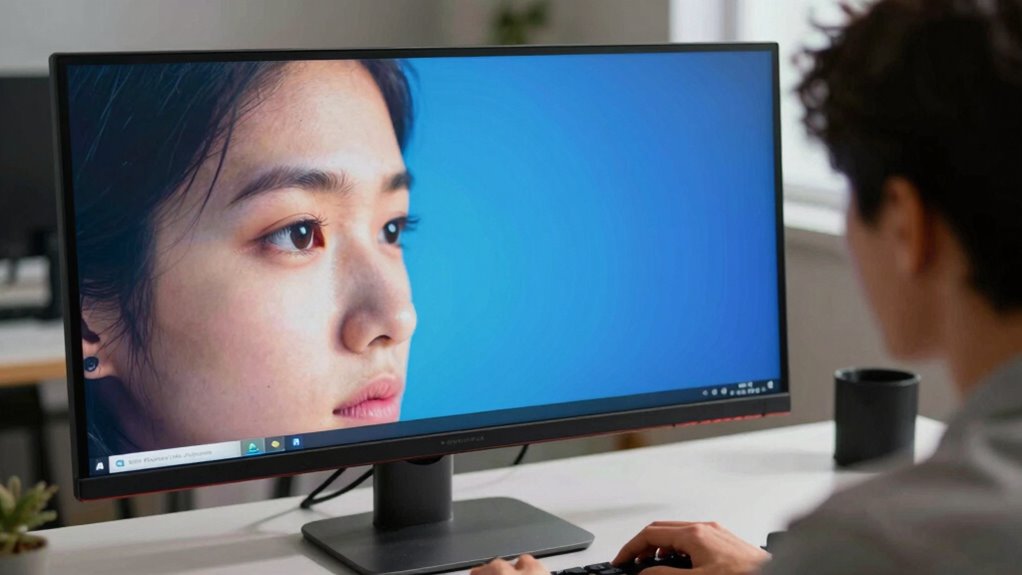
To keep your eyes comfortable during long hours of monitor use, it’s essential to take regular breaks and practice good eye care habits. Use ergonomic accessories like adjustable monitor stands and supportive chairs to reduce strain. Follow the 20-20-20 rule: every 20 minutes, look at something 20 feet away for at least 20 seconds. Incorporate simple eye exercises, such as blinking frequently or rolling your eyes, to keep your eyes moist and relaxed. Maintain proper lighting to prevent glare and reduce eye fatigue. Staying hydrated also helps keep your eyes lubricated. Remember, small adjustments in your routine can markedly improve comfort and prevent long-term eye issues. Prioritize these habits consistently for lasting eye health during extended monitor sessions.
Quick Actions to Improve Your Monitor Setup Today
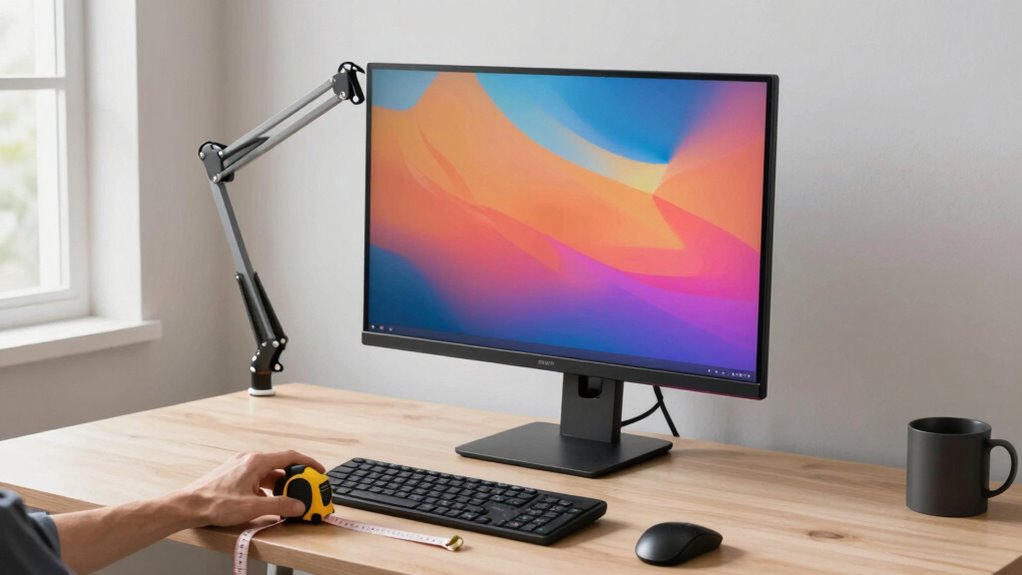
Improving your monitor setup can make an immediate difference in comfort and eye health. Start by adjusting your ergonomic accessories, such as an adjustable monitor stand or an ergonomic chair, to ensure proper alignment and reduce strain. Next, optimize your lighting conditions: avoid glare by positioning your screen away from windows and use soft, ambient lighting to lessen eye fatigue. Ultimately, consider the placement of your monitor—place it about an arm’s length away and at eye level. This simple adjustment can considerably improve your viewing distance and reduce eye strain. By making these quick changes today, you’ll create a more comfortable workspace that promotes better eye health and productivity. Small tweaks go a long way in preventing discomfort.
Frequently Asked Questions
How Does Ambient Lighting Influence Optimal Viewing Distance?
Ambient lighting markedly impacts your ideal viewing distance by affecting your viewing comfort. If the light is too bright or uneven, you’ll strain your eyes and need to sit closer to see details clearly. Conversely, low ambient light allows you to sit farther away comfortably. Adjusting your environment to balance ambient light enhances your viewing experience, reducing eye fatigue and making it easier to focus on your screen for longer periods.
Can Monitor Tilt and Angle Affect Eye Strain?
Yes, monitor tilt and angle can influence your eye strain. Proper ergonomic adjustments guarantee your monitor is positioned to reduce neck and eye fatigue. When your screen is angled correctly, it minimizes glare and awkward viewing angles. Incorporate eye exercises into your routine to further reduce strain. Don’t overlook small adjustments; they make a big difference in comfort, helping you work longer without discomfort.
What Role Does Screen Brightness Play in Comfort?
Screen brightness plays a vital role in your comfort, as overly bright screens can cause eye strain. Adjust the brightness to match your environment, and consider enabling flicker-free technology to reduce eye fatigue caused by screen flicker. Proper color calibration also helps by minimizing strain from harsh or unnatural colors. When your screen’s brightness, flicker, and colors are well-balanced, you’ll experience less discomfort during long viewing sessions.
Are There Recommended Viewing Distances for Different Monitor Types?
You should sit about an arm’s length away from your monitor, roughly 20-30 inches, for ideal comfort. For larger screens, increase the distance slightly, and for smaller ones, decrease it. Use ergonomic accessories like adjustable stands and monitor calibration tools to fine-tune your setup. This helps reduce eye strain and improves posture, ensuring you maintain a healthy viewing distance suited to your monitor type.
How Frequently Should I Reassess My Monitor Setup?
Think of your setup like a garden that needs tending. You should reassess your monitor setup every few months, especially if you notice discomfort or visual strain. Prioritize ergonomic posture and eye ergonomics by adjusting your distance and angles. Staying vigilant ensures your workspace remains comfortable and healthy, preventing long-term issues and keeping your focus sharp. Regular checks help you maintain ideal alignment and eye comfort effortlessly.
Conclusion
Remember, your monitor isn’t the villain—your viewing distance is the hero. Think of it like tuning a guitar; even the perfect string needs the right tension to sound right. By adjusting how close or far you sit, you’ll find clarity and comfort without upgrading your screen. Small tweaks can make a big difference, just like tightening a single string transforms the entire sound. Set your distance today, and enjoy a sharper, more comfortable viewing experience.